
How to Use MT4 The Ultimate Beginner’s Guide to MetaTrader 4
If you are new to forex trading, you have probably heard the name MetaTrader 4. It is the world’s most popular trading platform. Millions of traders use it every day. But getting started can feel overwhelming.
This guide breaks everything down simply. By the end, you will know exactly how to use MT4 from setup to placing your first trade.
What Is MT4?
MT4 stands for MetaTrader 4. It is a trading platform developed by MetaQuotes Software. Forex brokers worldwide offer it to their clients for free.
MT4 gives you access to:
- Live price charts
- Technical indicators
- Order placement tools
- Automated trading (Expert Advisors)
- A built-in strategy tester
It works on Windows, Mac, iOS, and Android. You can also use it as a web platform directly in your browser.

How to Download and Install MT4
Getting MT4 is easy and free.
Steps to install MT4:
- Go to your broker’s website
- Find the MT4 download link
- Click download for Windows or Mac
- Run the installer file
- Open MT4 and log in with your broker account details
If you do not have a live account yet, open a demo account. Most brokers offer this for free. A demo account lets you practice trading with virtual money.
How to Log In to MT4
Once installed, open the platform. Follow these steps:
- Click File in the top menu
- Select Login to Trade Account
- Enter your account number, password, and broker server
- Click Login
You are now connected to the live market data.
Understanding the MT4 Interface
The MT4 layout has four main areas:
| Area | What It Does |
|---|---|
| Market Watch | Shows live prices for all instruments |
| Chart Window | Displays price movement over time |
| Navigator | Stores indicators, EAs, and scripts |
| Terminal | Shows open trades, account info, history |
Spend a few minutes exploring each area. The more familiar you are with the layout, the faster you will trade.
How to Read MT4 Charts
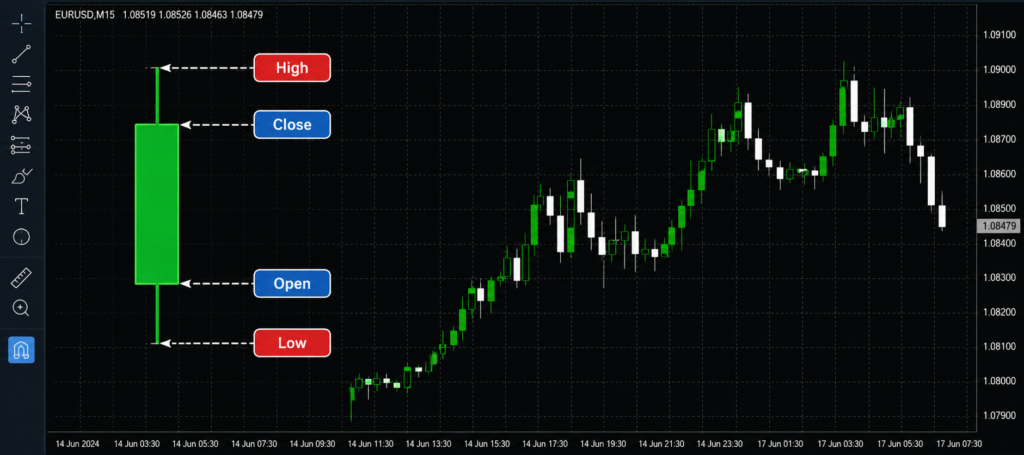
Charts are the heart of MT4. They show price movement visually.
Three chart types available:
- Line Chart – Simple, shows closing prices
- Bar Chart – Shows open, high, low, close (OHLC)
- Candlestick Chart – Most popular, easiest to read
To change chart type, right-click on the chart and select your preferred view.
Timeframes available in MT4: M1, M5, M15, M30, H1, H4, D1, W1, MN
Each timeframe shows a different view of the market. Beginners often start with H1 or H4.
How to Place a Trade on MT4
This is the most important step. Here is how to open a trade:
- Right-click on the chart
- Select Trading → New Order
- A window opens choose your instrument
- Set your lot size (trade volume)
- Add Stop Loss and Take Profit levels
- Click Buy or Sell
Your trade is now live. You will see it in the Terminal window at the bottom.
Order types in MT4:
- Market Order: Executes immediately at current price
- Limit Order: Executes when price reaches your target
- Stop Order: Triggers when price moves past a level
Always use Stop Loss. It protects your account from large losses.
How to Add Indicators on MT4
Indicators help you analyze the market. MT4 has 30+ built-in indicators.
To add an indicator:
- Click Insert in the top menu
- Hover over Indicators
- Choose a category (Trend, Oscillator, Volume, etc.)
- Select your indicator and click OK
Popular indicators for beginners:
- Moving Average (MA)
- Relative Strength Index (RSI)
- Bollinger Bands
- MACD
You can also download custom indicators and drag them into the Navigator panel.
MT4 vs MT5 What Is the Difference Between MetaTrader 4 and 5?
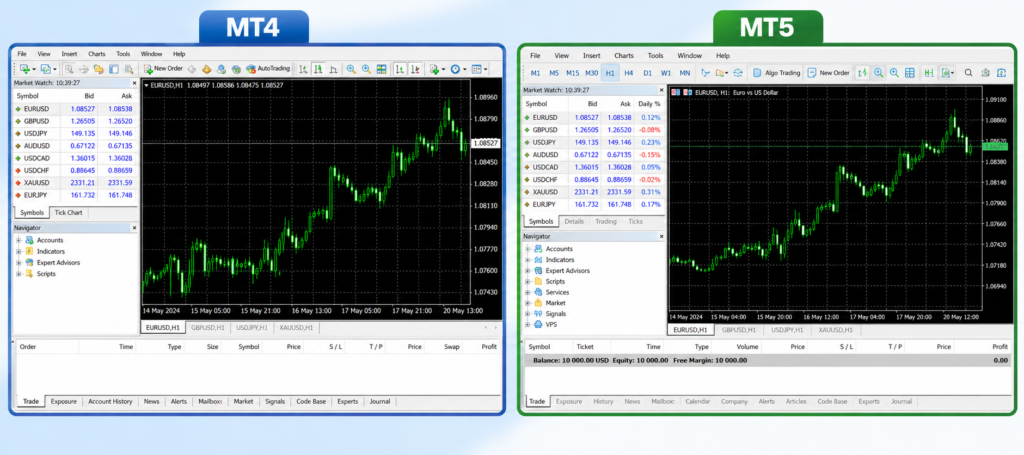
Many traders ask about MT4 vs MT5. Here is a clear comparison:
| Feature | MT4 | MT5 |
|---|---|---|
| Release Year | 2005 | 2010 |
| Timeframes | 9 | 21 |
| Order Types | 4 | 6 |
| Asset Classes | Forex mainly | Forex, Stocks, Futures |
| Built-in Indicators | 30 | 38 |
| Strategy Tester | Single-threaded | Multi-threaded |
| Programming Language | MQL4 | MQL5 |
| Popularity | Very high | Growing |
So what is the difference between MetaTrader 4 and 5?
MT5 is newer and more powerful. It supports more asset classes and has a faster strategy tester. However, MT4 remains the preferred choice for pure forex traders. Most brokers still offer MT4. The community, indicators, and EAs available for MT4 are far larger.
Our recommendation: Start with MT4 if you focus on forex. Move to MT5 later if you want to trade stocks or commodities.
How to Use MT4 on Mobile
MT4 has a powerful mobile app. It is available on iOS and Android.
To set it up:
- Download MetaTrader 4 from your App Store or Google Play
- Tap the menu icon and select Manage Accounts
- Search for your broker name
- Log in with your account credentials
You can place trades, view charts, and monitor positions from anywhere.
MT4 Expert Advisors (Automated Trading)
One of MT4’s biggest advantages is automated trading. Expert Advisors (EAs) are programs that trade for you automatically.
To attach an EA:
- Open the Navigator panel
- Find your EA under Expert Advisors
- Drag it onto a chart
- Enable AutoTrading in the toolbar
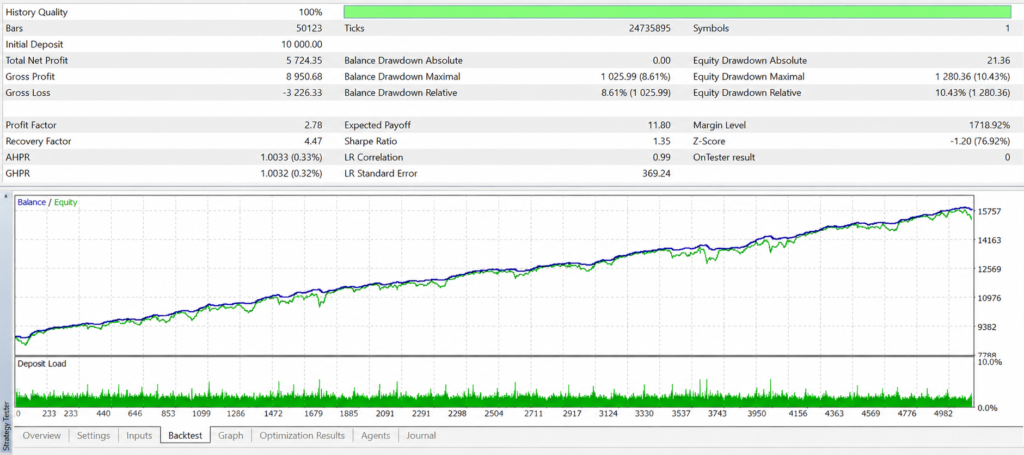
MT4’s Strategy Tester lets you backtest any EA using historical data before risking real money.
Frequently Asked Questions (FAQs)
Is MT4 free to use?
Can beginners use MT4?
Is MT4 better than MT5?
Can I use MT4 on my phone?
What is a lot size in MT4?
Does MT4 work 24/7?
Final Thoughts
Learning how to use MT4 is one of the best investments you can make as a forex trader. The platform is powerful, free, and supported by almost every major broker.
Start with a demo account. Practice placing trades. Explore indicators. Test your strategies using the Strategy Tester. Once you feel confident, transition to a live account with small lot sizes.
Whether you choose MT4 or MT5, the skills you build on MetaTrader will serve you throughout your trading career. MT4 remains the gold standard for a reason it is reliable, fast, and trusted by millions.