
MetaTrader 4 Tutorial: The Complete Beginner’s Guide (2025)
Are you stepping into forex trading for the first time? Or maybe you installed MT4 but feel lost staring at charts? You are not alone. MetaTrader 4 is the world’s most popular forex trading platform but it can feel overwhelming at first.
This MetaTrader 4 tutorial breaks everything down. Step by step. Plain and simple. By the end, you will know how to set up MT4, read charts, place trades, and use free MT4 indicators like a professional trader.
Let’s get started.
What Is MetaTrader 4?
MetaTrader 4 (MT4) is a free trading platform developed by MetaQuotes in 2005. Forex traders around the world use it daily. Banks, brokers, and retail traders trust MT4 because it is stable, fast, and flexible.
Key facts about MT4:
- Used by over 10 million traders globally
- Supports forex, commodities, indices, and CFDs
- Available on Windows, Mac, Android, and iPhone
- Allows automated trading via Expert Advisors (EAs)
- Offers hundreds of free MT4 indicators
How to Download and Install MetaTrader 4
Getting MT4 is easy and completely free.
Step 1: Go to your broker’s website (e.g., XM, IC Markets, Exness). Step 2: Click “Download MT4” or “MT4 Platform.” Step 3: Install the file on your computer or phone. Step 4: Open MT4 and log in with your broker-provided account details.
Pro Tip: Always download MT4 directly from your broker’s official website. This ensures you connect to the correct server automatically.
Understanding the MT4 Interface
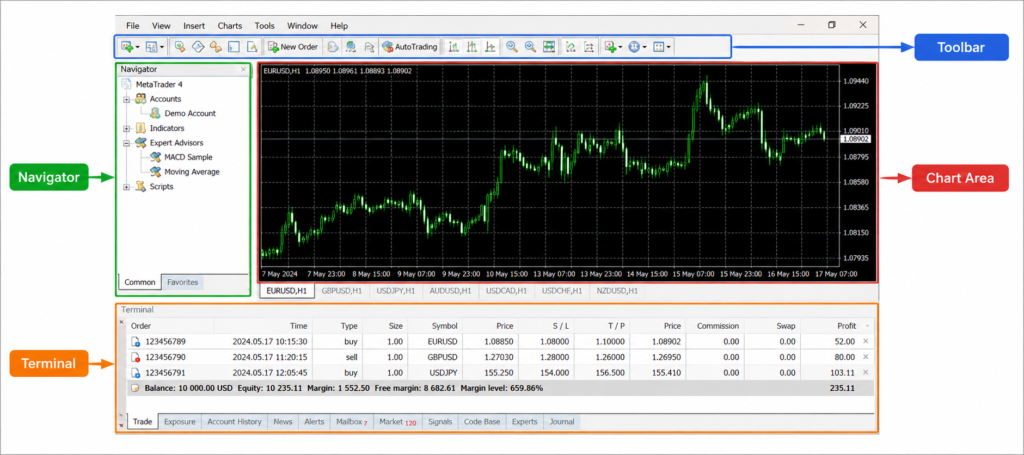
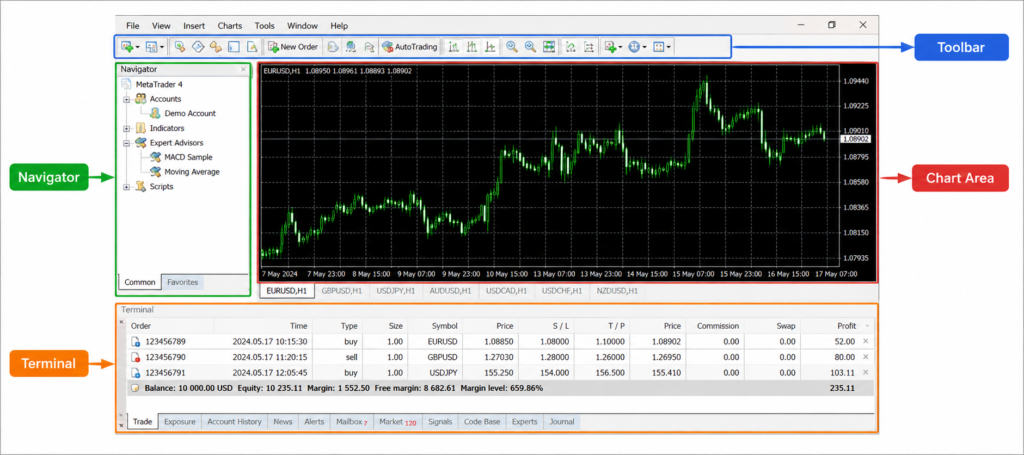
When you open MT4 for the first time, you will see four main areas:
Area | What It Does |
Chart Window | Shows live price movements |
Navigator Panel | Lists accounts, indicators, EAs, scripts |
Terminal Window | Shows open trades, account history, alerts |
Toolbar | Quick access to tools and functions |
Spend five minutes clicking through each section. Familiarity with the layout makes everything faster.
How to Open a Chart in MT4
Charts are the core of metatrader 4 tutorial learning. Here is how to open one:
- Click File → New Chart
- Search for a currency pair (e.g., EUR/USD)
- Select the pair and press OK
- Your chart will open in the main window
Change the timeframe using the toolbar at the top: M1, M5, M15, H1, H4, D1, W1, MN.
- M1 to M15 → Short-term scalping
- H1 to H4 → Intraday and swing trading
- D1 and above → Long-term position trading
Using Free MT4 Indicators
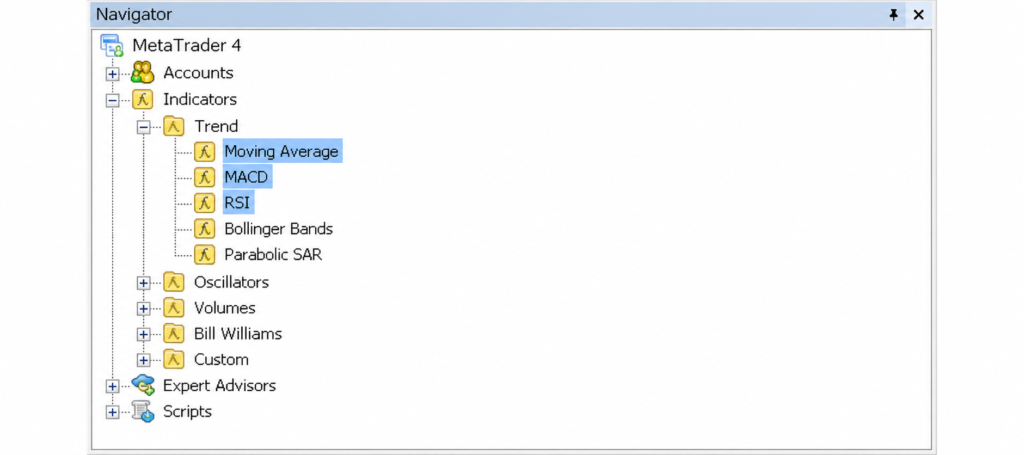
Free MT4 indicators are built directly into the platform. No downloads needed. These tools help you analyze price and find trading opportunities.
 IMAGE 2: Recommended Here Type: Screenshot showing the MT4 Navigator panel with the Indicators folder open, showing Moving Average, RSI, MACD highlighted Alt Text: Free MT4 indicators list in MetaTrader 4 navigator panel
To add an indicator:
- Open the Navigator panel (Ctrl+N)
- Click Indicators → Trend (or Oscillators)
- Double-click the indicator you want
- Adjust the settings and click OK
Top Free MT4 Indicators for Beginners
Indicator | Type | Best Used For |
Moving Average (MA) | Trend | Identifying trend direction |
RSI (Relative Strength Index) | Oscillator | Overbought/Oversold signals |
MACD | Momentum | Trend reversals and momentum |
Bollinger Bands | Volatility | Price breakouts and ranges |
Stochastic Oscillator | Oscillator | Entry/exit signals |
All of the above are completely free MT4 indicators no payment, no subscription, no third-party downloads required.
How to Place a Trade on MT4
This is the most important skill in any MetaTrader 4 tutorial.
Step 1: Right-click on your chart → Select “New Order” Or press F9 on your keyboard.
Step 2: A new order window opens. Fill in:
- Symbol: Currency pair (EUR/USD, GBP/USD, etc.)
- Volume: Lot size (0.01 = micro lot, 0.1 = mini lot, 1.0 = standard lot)
- Stop Loss: Price where your trade closes if it goes against you
- Take Profit: Price where your trade closes in profit
- Type: Market Execution (instant) or Pending Order
Step 3: Click Buy or Sell.
Your trade is now live and visible in the Terminal window at the bottom.
Order Types Explained
Order Type | What It Does |
Market Order | Opens trade immediately at current price |
Buy Limit | Opens buy trade when price drops to your level |
Sell Limit | Opens sell trade when price rises to your level |
Buy Stop | Opens buy trade when price rises past your level |
Sell Stop | Opens sell trade when price drops past your level |
Pending orders are powerful tools. Use them when you cannot watch the screen constantly.
How to Use Stop Loss and Take Profit
Never trade without a stop loss. This is rule number one in risk management.
- Stop Loss = Your maximum acceptable loss per trade
- Take Profit = Your target profit level
Simple formula for beginners: Risk no more than 1–2% of your account per trade. If your account is $500, your maximum loss per trade should be $5–$10.
MT4 Demo Account vs Live Account
Feature | Demo Account | Live Account |
Real money | ❌ No | ✅ Yes |
Real market conditions | ✅ Yes | ✅ Yes |
Risk | Zero | Real financial risk |
Best for | Learning and practice | Active trading |
Always practice on a demo account first. Most brokers offer free demo accounts through MT4 with virtual funds of $10,000–$100,000.
MT4 on Mobile (Android & iPhone)
You can trade from anywhere using the MT4 mobile app.
To set up MT4 mobile:
- Download “MetaTrader 4” from Google Play or Apple App Store
- Open the app → Tap the top-left menu
- Tap Manage Accounts → Add Account → Existing Account
- Search for your broker name, enter login and password
- Done: your account is live on mobile
All your open trades and charts sync instantly between desktop and mobile.
MT4 Expert Advisors (Automated Trading)
An Expert Advisor (EA) is a robot that trades automatically on your behalf. It follows pre-set rules without emotions.
How to attach an EA:
- Download or purchase an EA (.ex4 file)
- Place it in: File → Open Data Folder → MQL4 → Experts
- Restart MT4
- Drag the EA onto your chart from the Navigator panel
- Enable Auto Trading by clicking the button in the toolbar.
Platform | Cost | Who Pays |
MetaTrader 4 (MT4) | Free | Nothing — broker provides it |
Premium EAs | $50–$500+ | Trader purchases separately |
Custom Indicators | Free–$200 | Optional |
VPS Hosting (for EAs) | $5–$30/month | Optional for 24/7 trading |
MT4 itself is always free. Costs only arise if you choose premium tools or VPS hosting.
Frequently Asked Questions (FAQs)
Is MetaTrader 4 free to use?
Yes. MT4 is 100% free. Download it through your broker at no cost.
Where can I find free MT4 indicators?
Free MT4 indicators come pre-installed in the platform. You can also find hundreds more on MQL5.com, the official MetaQuotes marketplace, many of them completely free.
Can I trade on MT4 without experience?
Yes. Start with a demo account. Practice until you are consistently profitable before using real money.
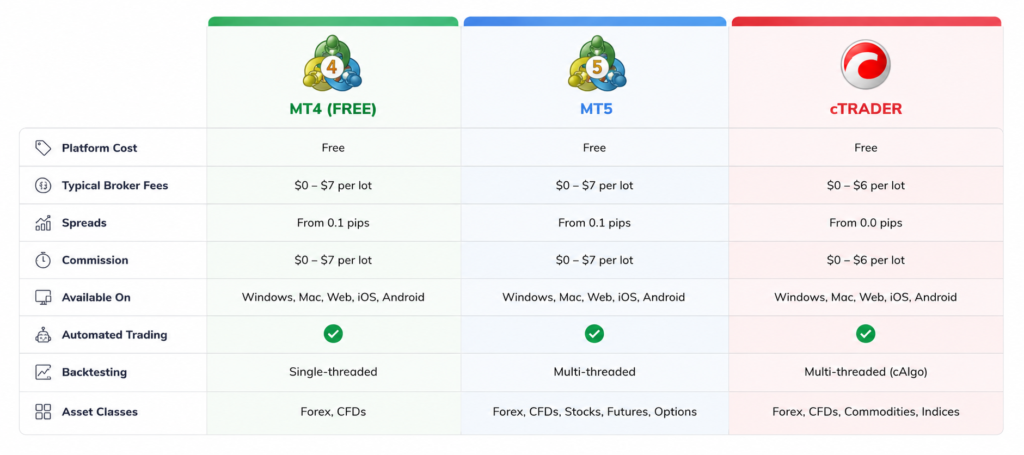
What is the difference between MT4 and MT5?
MT4 is simpler and better for forex. MT5 supports more asset classes and has additional order types. Most forex traders still prefer MT4.
Is MT4 safe for real trading?
Yes. MT4 uses 128-bit encrypted connections and is regulated and trusted by thousands of licensed brokers worldwide.
How do I download custom free MT4 indicators?
Download the .ex4 or .mq4 file. Place it in File → Open Data Folder → MQL4 → Indicators. Restart MT4. The indicator appears in your Navigator panel.
Final Thoughts
MetaTrader 4 remains the gold standard in forex trading platforms. It is free, powerful, and designed for both beginners and advanced traders.
This MetaTrader 4 tutorial gave you everything you need: installation, charts, orders, stop loss, free MT4 indicators, mobile trading, and automated EAs.
Your next step is simple. Open a free demo account with a trusted broker, fire up MT4, and start practicing today. The markets are open 24 hours a day, five days a week. Your opportunity starts now.